
Adding an audio file to Moodle (mp3)
Completion requirements
If you need to add simple audio files (mp3) to an area on Moodle, you can do this without using Planet eStream.
Create a new topic/section and save and display.
On the main course page, drag the audio file onto the section you wish it to appear in.
You'll get a pop up box like this:
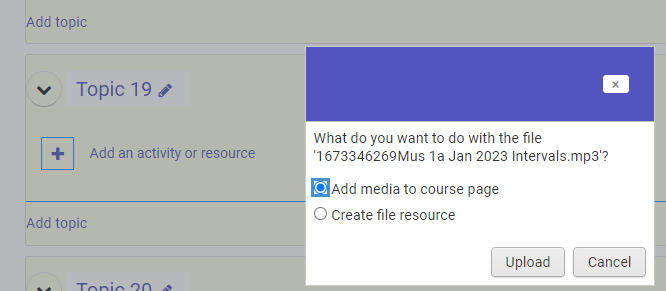
Select 'Add media to course page'
Your audio file will play with a player that looks like this:
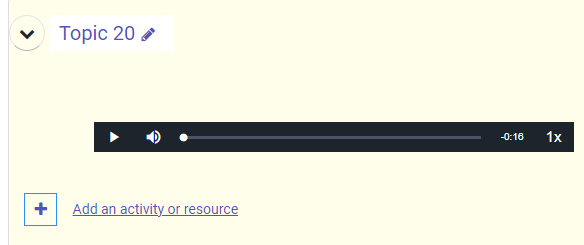
You can then edit that section using the three dots menu and add any text or info around the player tool.
Last modified: Tuesday, 19 December 2023, 12:13 PM